Dealing with PC hardware problems can be frustrating, significantly when they hinder our productivity and cause inconvenience. From blank monitors to keyboard malfunctions, and display image distortions, these issues can disrupt our workflow. However, fear not, as we’ve got you covered! In this article, we’ll explore eight common PC hardware problems and provide practical solutions to get your system back on track.
We all know that hardware failure is very common. So after polling nearly two hundred clients, it’s not surprising that 99% per cent of them had experienced a hardware failure. But the problem is that during this collapse, they lose data.
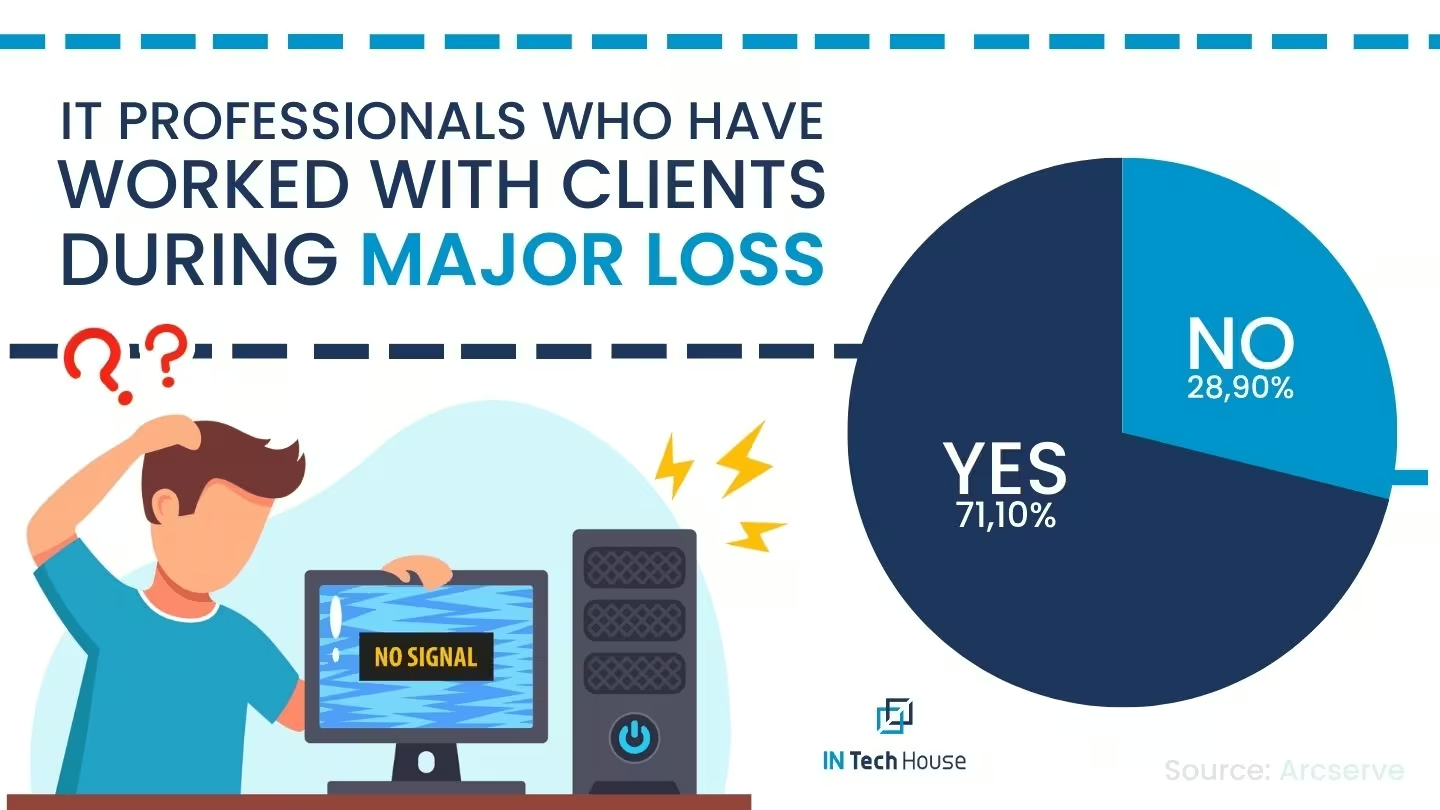
Source:Arcserve
One of the most unsettling issues is encountering a blank computer monitor when you power on your PC. Before panicking, check the monitor’s power supply and connection to the computer. If the issue persists, try connecting the monitor to another computer to identify whether the problem lies with the monitor or the PC. Faulty cables or outdated graphics drivers could be potential culprits.
Are some of your keyboard keys unresponsive? This problem could occur due to debris accumulation beneath the keys or a malfunctioning keyboard driver. Try cleaning the keyboard gently using compressed air and update the keyboard driver. If the issue persists, consider replacing the keyboard with a new one.
A malfunctioning mouse can significantly hinder your computing experience. If your mouse cursor is freezing or moving erratically, check the mouse’s physical condition and its connection to the PC. You may also want to update the mouse driver or try using a different USB port to see if the issue resolves.
Consumer troubleshooting stops working once a failure sits in the board, the power rail or the connector. Our electronics engineers diagnose hardware faults at component level and tell you whether to repair, redesign or replace.
Talk to our hardware engineers about device-level failures
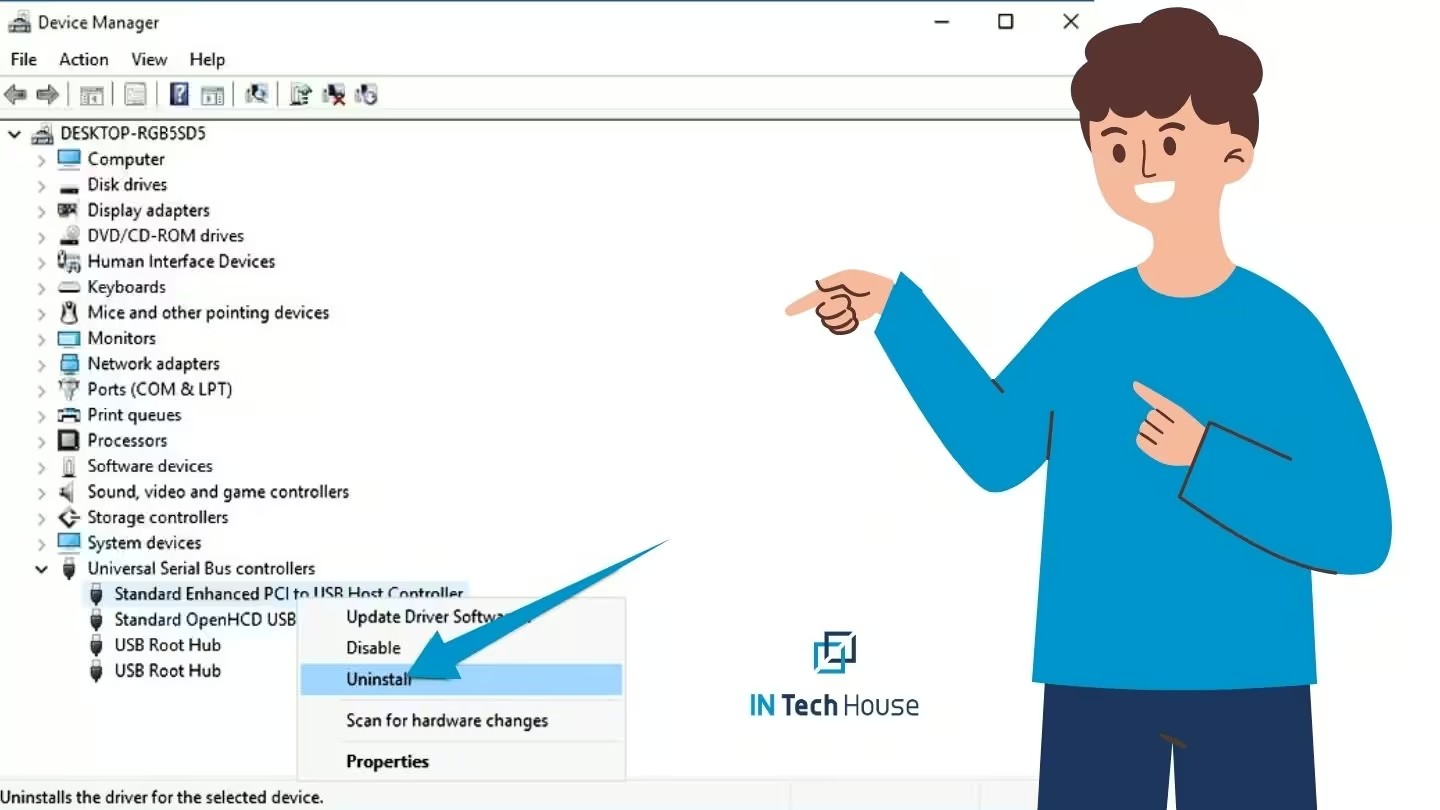
When multiple USB devices stop working, it might be due to a corrupted USB port driver. Uninstalling the driver and restarting your PC will prompt Microsoft Windows to reinstall the appropriate driver automatically. This simple step can often fix USB-related problems.
For laptop and computer users experiencing cursor jumps or erratic movements, disabling the touchpad while typing can be an effective solution. Navigate to your touchpad settings and enable the option to disable the touchpad temporarily when typing.
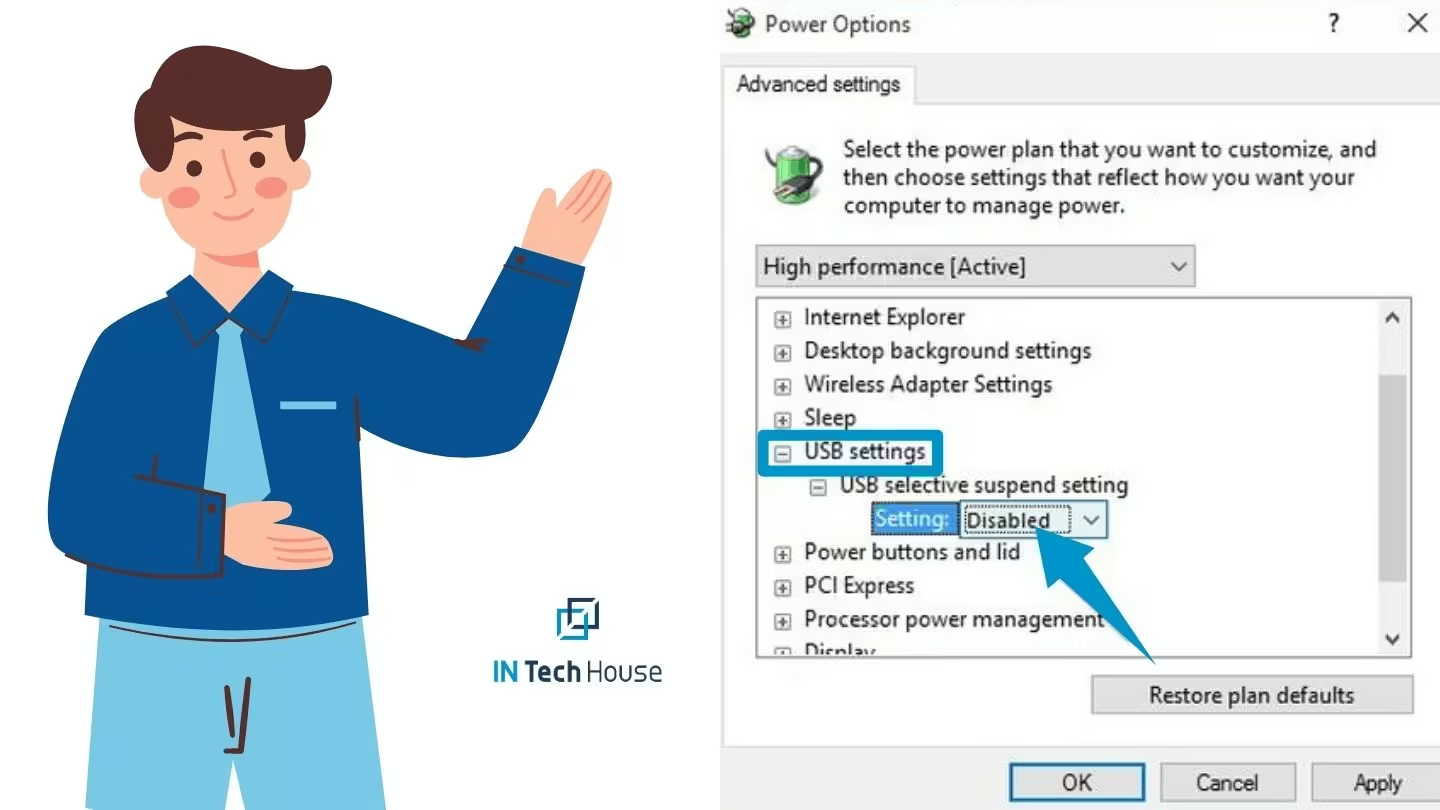
If your PC encounters issues with USB devices, such as external hard drives disconnecting unexpectedly, the USB Selective Suspend feature might be to blame. Disabling this feature in the Power Options can resolve such complex computer issues.
Distorted images or strange artefacts on the screen can be disconcerting. Check the graphics card connections and ensure that the drivers are up to date. If the problem persists, consider testing the monitor on another personal computer or using a different monitor to isolate the issue.
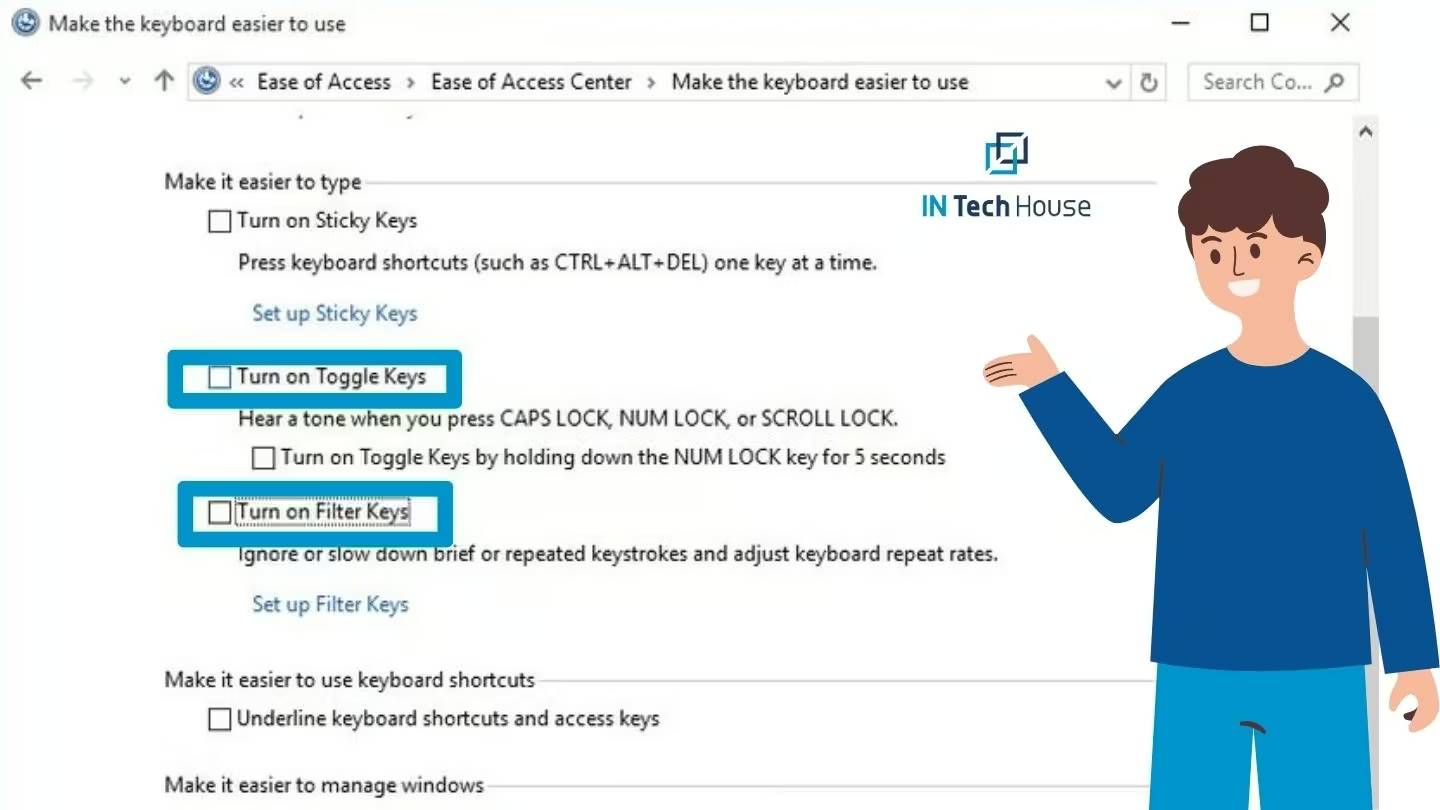
If your keyboard is typing multiple characters with a single keystroke or repeating keys, adjusting the keyboard repeat rate and delay system hardware settings in Windows can often resolve the problem. Additionally, cleaning the keyboard and ensuring there is no physical damage may help.
The motherboard is the heart of your PC, and when it encounters issues, the entire system can suffer. If you experience frequent crashes before the operating system loads or notice random reboots, it could indicate a problem with the motherboard. Consult a professional technician for a thorough diagnosis and possible repair.
If your laptop’s speakers produce annoying static or crackling sounds, try updating the audio drivers first. If the issue persists, the speakers may be faulty, and a technician can help with necessary repairs or replacements.
Certain hardware issues might require the expertise of a professional. For instance, persistent fan noises, signs of virus infection, or a failing hard disk demand immediate attention from an experienced technician. Don’t hesitate to seek professional help to prevent further damage.
Noisy fans can be annoying and disruptive. Regularly clean the fans and ensure proper airflow to minimize fan noises. If the noise continues, you may need to replace the fan or consider upgrading to a quieter cooling solution.
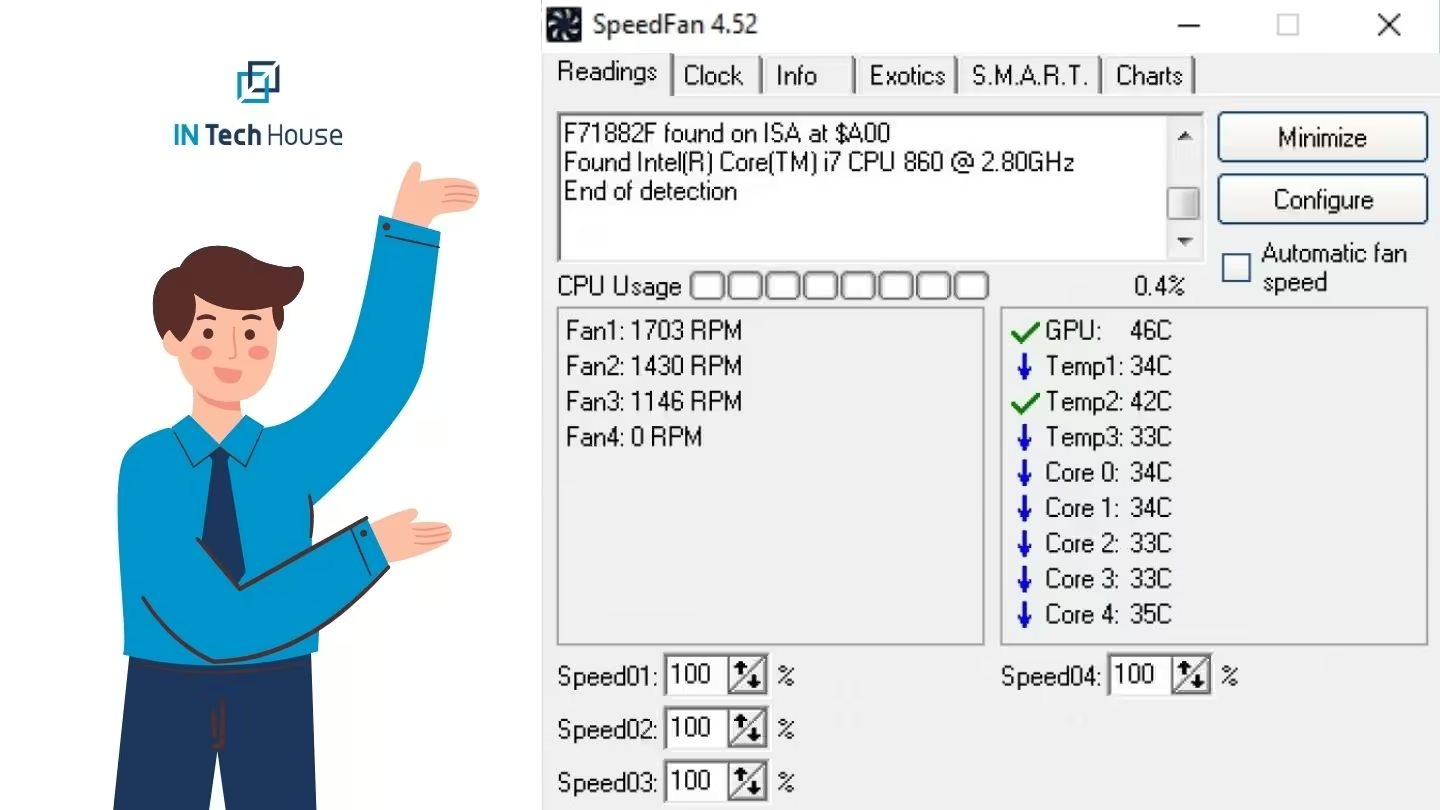
Overheating is a serious concern for PCs, and malfunctioning fans can worsen the problem. Regularly check your PC’s fans for proper functioning, and consider cleaning them to ensure an optimal cooling system.
Virus infections can wreak havoc on your PC, causing performance issues, unexpected crashes, and data breaches. Keep your system updated with reliable antivirus software and perform regular scans to detect and remove potential threats.
For MacBook users, a dimmed or blacked-out screen might indicate a problem with the motherboard. Seek assistance from an authorized service centre or an Apple-certified technician to diagnose and resolve the issue.
Physical pressure on the RAM modules can lead to connection issues, causing your PC to crash or freeze. Make sure the RAM is properly seated and not subject to unnecessary pressure or force.
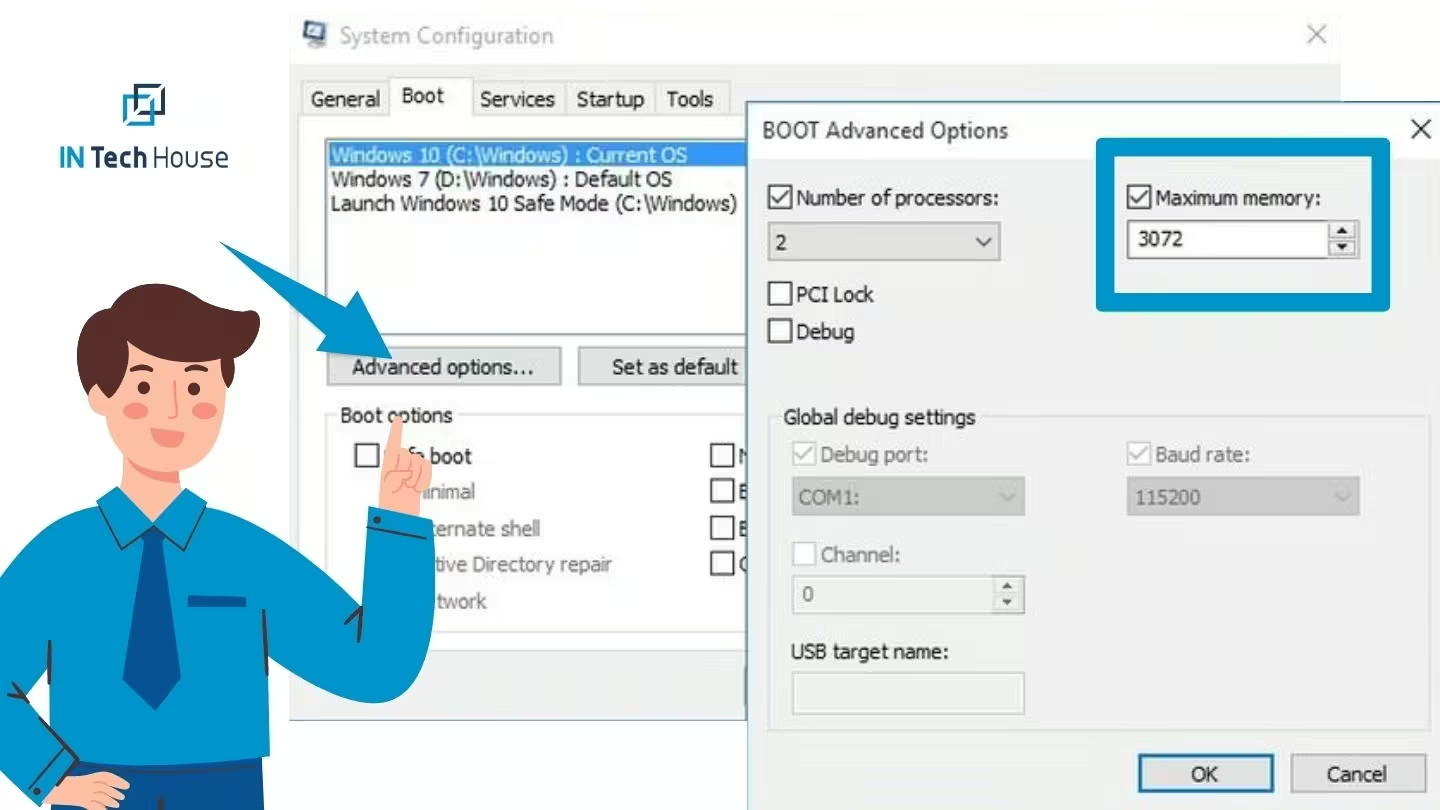
Keyboard malfunctions, such as keys not registering or sticking, can be caused by dirt or debris between the keys. Carefully clean your keyboard or consider replacing it if the problem persists.
Unusual grinding or whirring sounds coming from your PC could be a sign of hardware issues. Check your hard drive and fans to identify the source of the noise, and seek professional help if needed.
Encountering the dreaded Blue Screen of Death can be alarming. BSoD errors often indicate hardware or driver problems. Troubleshoot the issue by updating drivers or performing a system restore.
If your hard drive starts making strange noises, it might be failing. Back up your data immediately and consider replacing the hard drive to avoid data loss.
A faulty hard disk can lead to data loss and system crashes. If your PC shows signs of a failing hard disk, such as slow performance or frequent error messages, back up your important data immediately. Replacing the faulty hard disk with a new one and restoring your data can prevent further complications.
Encountering a blank monitor upon starting your PC can be alarming. Before panicking, ensure that all connections between the monitor and PC are secure. If the issue persists, it may indicate a problem with the graphics card or the monitor itself. Testing the monitor on another PC or trying a different monitor will help identify the source of the problem.
If your monitor loses signal and goes black after a few seconds, the issue could be related to the graphics card, monitor settings, or cable connections. Double-check all connections and ensure the monitor settings are correct. If the problem persists, consult a professional technician for further assessment.
Mouse left-click malfunctions can hinder your productivity and cause frustration. To fix this issue in Windows, follow these steps:
Overheating is a common problem that can lead to hardware failures. Dust and debris can accumulate inside your PC, obstructing airflow and causing components to overheat. Regularly clean the interior of your PC and ensure that all fans are functioning correctly to maintain effective cooling.
When faced with mysterious PC issues, running diagnostics is often the first step towards identifying the root cause. Most PCs have built-in diagnostic tools that can perform comprehensive tests on hardware components. By analyzing the results, you can pinpoint potential problems and take appropriate action. CPU stress tests are a standard part of most diagnostic suites, and their results are easier to interpret with a clear picture of how a CPU processes data under load.
While some hardware issues are easily resolved, others require the expertise of a professional technician. Don’t hesitate to seek professional help when needed, especially for complex problems like motherboard failures or hard disk issues. A trained specialist can diagnose the problem accurately and provide reliable solutions.
As technology continues to advance, our dependence on personal computers has grown exponentially. Whether for work, entertainment, or communication, PCs play a vital role in our daily lives. However, encountering hardware problems can disrupt our productivity and cause frustration. In this article, we will provide you with expert advice from InTechHouse on how to avoid common PC hardware problems and keep your computer running smoothly.
Most of the faults listed above are easier to diagnose when you know how the machine is put together. Buses, memory hierarchy and power delivery decide which symptoms are plausible and which point somewhere else entirely, and hardware architecture basics and types explains that layout in plain terms.
By following InTechHouse’s expert advice on how to avoid common PC hardware problems, you can ensure that your computer remains reliable and efficient. Investing in quality components, proper installation, regular cleaning, and keeping your PC cool are essential steps to prevent hardware failures. Moreover, protecting your PC from power surges, using reliable antivirus software, and keeping your software up to date will enhance your overall computing experience. With these proactive measures, you can enjoy trouble-free PC usage, allowing you to focus on what matters most – your tasks, projects, and digital endeavours.
Most recurring hardware problems are designed in, not caused by users. We build electronics for regulated and industrial use where thermal margin, connector choice and power integrity are verified before production.
Not sure where to start? We work with companies at every stage, from early ideas to enterprise-level builds. A 30-minute call can save you months of guesswork.
A PC problem is likely caused by hardware when it persists across operating systems or appears before the operating system loads. A practical test is to boot from a live USB drive, such as a Linux image, or to stay in the UEFI setup: if crashes, display artifacts or freezes continue there, the fault is in hardware. Problems that start after a driver or system update, disappear in safe mode, or affect a single application point to software.
A computer's RAM is tested for faults with a dedicated memory test that runs outside the normal operating system, such as MemTest86 or Windows Memory Diagnostic. A full pass writes and reads patterns across all memory and can take an hour or more on large capacities; any reported error indicates a problem. To isolate the cause, test one module at a time in different slots, and check that memory profiles such as XMP or EXPO are not running the modules beyond stable settings.
A failing hard drive or SSD usually shows warning signs in its SMART data before it fails completely. Tools such as CrystalDiskInfo on Windows or smartctl on Linux read attributes including reallocated sectors, pending sectors, uncorrectable errors and, for SSDs, the percentage of rated endurance used. Rising values on these counters, clicking noises from a hard drive, or sudden slowdowns during file copies are reasons to back up data immediately and replace the drive.
A failing PC power supply typically causes random shutdowns or reboots under load, failure to start, intermittent USB or drive disconnections, and instability during gaming or rendering when the graphics card draws peak power. A burning smell, coil whine that changes with load, or a unit that only works when cold are further warning signs. Because other components can mimic these symptoms, swapping in a known good power supply of adequate wattage is the most reliable diagnosis.
A cooling problem is likely when a CPU or GPU sustains temperatures near its maximum junction temperature, commonly around 95 to 105 °C depending on the model, and starts thermal throttling under ordinary workloads. Idle temperatures far above room temperature, roughly more than 20 °C higher, also suggest dust buildup, a failed fan or dried thermal paste. Monitoring tools such as HWiNFO show temperatures and throttling flags, and the manufacturer's specification for the exact model is the reference point.

Robert Obiała is a Senior Embedded Systems and Hardware Engineer at InTechHouse with over 12 years of hands-on experience in electronic product development. He specializes in embedded hardware design, multilayer PCB development, firmware engineering, EMC compliance, system integration, and troubleshooting complex electronic devices.
Robert works across the complete product development lifecycle - from system architecture and component selection through schematic and PCB design, embedded software development, prototyping, testing, pre-compliance validation, and preparation for production.
His project experience includes FPGA-based onboard computers for the space industry, low-power IoT and telemetry devices, industrial data acquisition systems, UAV payload electronics, power electronics, and embedded hardware and software for advanced optical equipment. He has designed systems based on STM32, ESP32, AVR, ARM, and AMD Xilinx Zynq platforms, using C, C++, Embedded Linux, and communication technologies including Ethernet, CAN, RS-485, SPI, I2C, UART, Wi-Fi, BLE, MQTT, and LTE-M.
Robert holds an Engineer's Degree in Electronics and Telecommunications and has completed specialist training in EMC-aware electronics design. He writes about practical hardware development, embedded systems, PCB design, firmware engineering, EMC testing, FPGA-based architectures, and bringing reliable electronic products from concept to production.
From first prototype to production, our engineers can help you scope it, build it and get it certified.
This initial conversation is focused on understanding your product, technical challenges, and constraints.
No sales pitch - just a practical discussion with experienced engineers.
Share a few details about your product and context. We’ll review the information and suggest the most appropriate next step.